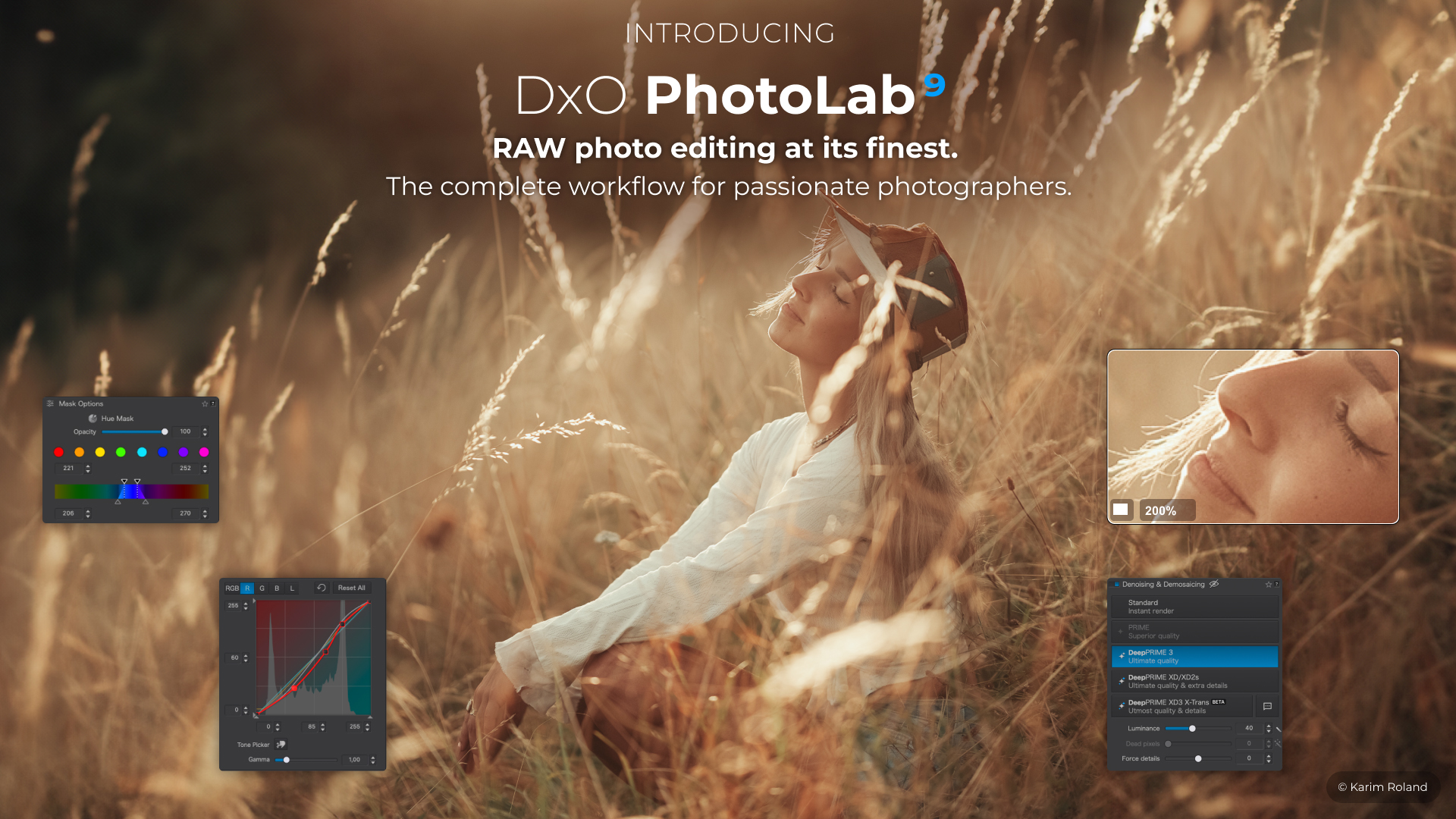
Definitive DxO PhotoLab 9 Review
The release of PhotoLab 9 came a month earlier than usual. This DxO PhotoLab 9 review, a month later. There may well have been valid reasons for the early release but with hindsight I’m sure DxO will think it was a mistake.
In line with my own first impressions of the beta, the forums have seen a fair amount of criticism reflecting the lack of stability of the platform as released on both Mac and Windows, the necessity to download older versions of the Nvidia Graphics drivers where necessary and an apparent necessity for more memory on the host computer. None of this is a good look.
Regular visitors to this site will be wondering why I did not feature a DxO PhotoLab 9 Review on its release a month or so ago. My thinking is simply that I don’t do bad reviews. If I have nothing positive to say about a product I pass. The beta version of PL9 that was sent out to reviewers was, in my opinion, not alpha enough if that makes sense.
We expect beta code to be flawed and we generally go with the assumption that minor snags will be ironed out by release day. This time it was a little different. There were issues and in line with my policy of not recommending products that I cannot use myself, I opted to delay my review, in the expectation that DxO would address the issues.
Since that time, I know the DxO team has been working hard to rectify the problems, they sent me a revised version before the release date but I was taking photographs in a remote area of Western Scotland and couldn’t download it. I’ve now got hold of the official 9.0.1 upgrade and I’m happy to say it works fine on my Mac. Now that we have a stable product, I can get on with the business of reviewing it.
Table of Contents
Perspective
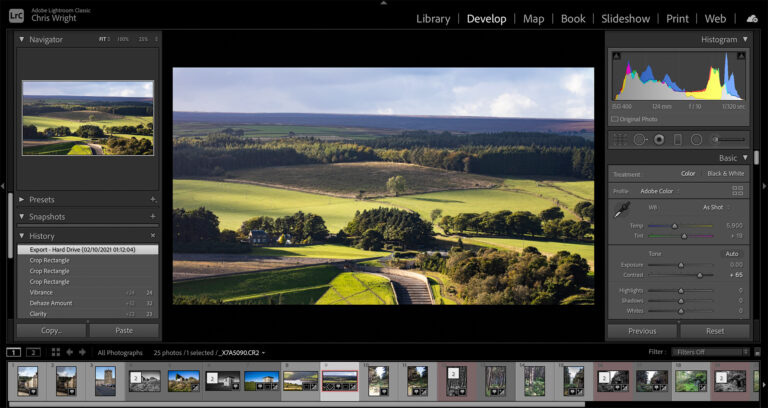
Let’s get a little perspective. For many years now, DxO have been promoted (including by me) as a viable alternative to Adobe Lightroom. A lot of people are very interested in alternatives to Adobe for a variety of reasons but the reality is Adobe Lightroom/Photoshop is the go to combination for most professional photographers.
The photography landscape has changed though. From my own perspective, in the UK I made 85% of my income directly from Photography and Video. Four years later the balance has shifted. My income is derived from teaching photography, from photography workshops, selling prints, YouTube, Affiliate income and in a good month around 60% from taking pictures for clients. So what is a professional photographer in 2025?
The modern photographer is taking pictures for social media, for YouTube thumbnails, for newsletters and teaching materials. And of course, for clients. In this new landscape, PhotoLab is a perfectly viable solution for the demanding photographer who strives for technical perfection.
There was a period a couple of years ago where DxO looked as though they would go head to head with Adobe Lightroom but when Adobe introduced their AI Selection tools, they also pulled clear of the competition. It’s not surprising then that DxO have ploughed most of the development budget into AI Selection tools.
TL;DR
The addition of AI selection tools is a significant, even game changing improvement.
There are a range of other useful additions and tweaks such as support for Heic/Heif and Apple ProRAW, The introduction of Noise Reduction/Demosaicing as a local adjustment (about which more later) and some tweaks to the projects section of the Library module.
So does the addition of AI Selection tools make PhotoLab a contender again? Well it makes PhotoLab relevant again but it is not yet a pro standard workhorse in the old fashioned sense. It lacks too many features that professional commercial photographers rely on, that can be found in both CaptureOne and Lightroom/Photoshop. For example, Exposure Blending and Focus Blending.
DxO themselves position PhotoLab as primarily a RAW processor and in this respect PhotoLab is outstanding. Which means that for enthusiasts and modern creatives it is absolutely viable and as a substitute for Adobe Lightroom it is close but lacks the power and versatility of Photoshop (which is bundled with Lightroom). Still better than any other processing app with the possible exception of Capture One though.
A couple of other minor gripes. DxO have made a lot of noise about the addition of stacks to the application. This may be a language thing (DxO are a French company) but the naming of this new feature is already causing confusion – in digital image processing, stacks are and have been for many years associated with layer based processing techniques such as Focus Stacking and HDR. Stacks in PhotoLab are arbitrary collections of photographs, controlled by the user to group similar pictures together for convenience. There is no other function. This is a problem if people’s expectation is for layer based processing.
The licensing continues to bemuse – dependencies on ViewPoint and FilmPack for basic functionality look like crass commercially driven decisions and the process of upgrading your computer and porting the license is ludicrously painful. Basically you’ll be without a processing environment until DxO support get around to responding to the fact you’ve uninstalled it from your old computer. Other companies allow you to deregister your license from one platform and install on another and have for a decade. Why not DxO?
There is also an AI writing tool the inclusion of which is completely baffling – it can be used to modify watermarks but if that is the only use case it is grotesquely over featured. Surely we don’t need to use AI to change the tone of a watermark text? I can only imagine there will be some other use case coming down the line but as somebody once wrote in the DxO forum – PhotoLab is a RAW processor. It has nothing to do with text.
UPDATE 11.10.25
The AI writing tool actually comes from MacOS. It’s a new feature that injects these menu items into any application running on the system featuring text fields, unless programatically excluded. So not a new feature from DxO!
Essentially, the good news is very good, the omission of long overdue corrections and feature requests somewhat baffling and there is no change at all to the licensing conditions. For the photography enthusiast and modern creative it’s probably the best value for money available. For full time commercial photographers, depending on a stable platform every day for their living, well, the industry revolves around Adobe..
Detailed DxO PhotoLab 9 Review
Given the emphasis that DxO have placed on the new AI Selection tools, I’ll begin with those.
AI Selection Tools

There are two ways you can add a selection using the AI selection tool. First choose AI Mask in the local adjustments panel (highlighted), then choose New Mask below the local adjustments list area. Now go down to the area below the image preview screen and choose a Mode. There are five possible choices.
Add a Selection
With this selected you can move your cursor around the image and let the AI choose the selection. You will find that this is a skill worth cultivating as it is highly responsive to movement.
Remove a Selection
The opposite of add a selection. Probably best used to modify an existing selection in the context of sub masks. If you want to remove a selection made in error simply right click on the mask in the local corrections area and choose delete.
Add an Area
You can use a rectangular selection tool to outline the object you want to select. This tool is very effective and probably the quickest way to get to pre-visualised selections.
Remove an Area
The opposite of Add an Area – helpfully, if you use this tool after adding an area it will automatically create a Sub Mask which is useful in terms of organisation.
Pre-Defined Masks
These are pre-programmed selections that include –
Sky
Subject
Background
People
Animals
Flowers
Background
Hair
Faces
Clothes
These go a way beyond the choices offered by Lightroom (Subject, Sky, Background, Landscape, Object, or People) but the Lightroom AI Object selection tool will happily do all of these so useful for the new user, not so much for experienced users.
Once a mask is applied, the controls available to use on that mask are displayed immediately below the panel. In the picture above – Opacity, Exposure, Selective Tones, Clearview and more below the fold.
Sub Masks
Sub Masks in PhotoLab 9 allow the user to mix and match masks including AI masks and traditional masks in order to get the precise combination they require. This is very powerful indeed and gives DxO parity with Adobe’s more traditional (as in common to almost all graphics applications) methods of intersecting, adding and subtracting masks, albeit in a slightly more complicated fashion.
As with Adobe some lateral thinking (creativity!) is required. Here is a scenario – you use a predefined Sky mask to select the sky, but the adjustment you choose to apply affects everything in the sky, from the dark blue to the white clouds. You can then create a sub mask and use a negative control point or any other type of mask to remove the clouds from the selection.
You can see how this could be used to refine almost any selection. Hair? Simply remove the background color, trees on the horizon? Remove the sky or if the sky between the branches has not been selected add it based on hue or luminance range. Key is to remember that AI selections are not a silver bullet for all cases, often they are a huge time saver in getting you closer to where you want to be. The advanced user will want to take advantage of this capability.
Hints for Better AI Selections
Low Contrast Scenes
If your selection is missing or overlapping an edge you can erase the offending pixels with a brush, but there is an easier way – in the light panel increase the contrast globally or work with selective tones until you get the best most distinct edges you can manage – then create the selection. Because the selection is independent of the image you can then reset the global controls. to the original values and your selection will be retained.
Fine Tuning
Increase the magnification to 100% then use a brush, control point or other local adjustment tool as a sub mask to bring in missing pixels or delete extra pixels along the edge. Make sure you use the opacity control to get the selections to match.
Removing overlapping Pixels
It’s easy to get into fine adjustments with a brush but sometimes there is a better answer. In a picture where I had a sea with a hazy mountain in the distance, I found my first selection appeared to nail the sea but on closer inspection (100%), overlapped the mountain considerably. Rather than use the brush to trace the shoreline, it was quicker to select the mountain with the negative selection tool as a submask.
HEIC File Support and Apple Pro RAW
Long overdue support for the Apple iPhone. This is a significant step forward and will certainly make the application more attractive to new users.
DeepPRIME XD3 X-Trans
This is now out of beta and finally gives Fuji users a reason to migrate to PhotoLab.
Noise Reduction and Sharpening as a Local Adjustment
This is more significant than it appears at first glance. DxO have always integrated their noise reduction in the demosaicing process. What this means is that when you export from the app, the entire chain of corrections is applied from the ground up, ie from demosaicing to editing to file format. This is one of the reasons DxO dominate the noise reduction market and this new ability to make noise reduction and sharpening a local edit brings some interesting possibilities into play for example in portrait photography where the foreground needs to be pin sharp and also landscape where skies do not respond as well to sharpening as land.
PhotoLibrary
I’m afraid Lightroom is still streets ahead of the competition when it comes to library management. DxO have made some small improvements, taking it in the right direction but it still feels like an afterthought. The way around this is to organise your library independently of the application by creating a file structure that you can maintain for a decade at least. For example Year/Location or Year/Genre whatever suits you best. I use Client/Year/Date and with my landscape photography, Location/Year/Date. If you can do this then you simple “show” PhotoLab the folders you want to work with.
Usability
I’m not certain that anything I can put my finger on has changed but this release seems more usable than previous releases. Turning features on and off works intuitively, speed is relatively good (turn off DeepPrime Rendering in Settings though) The AI Selections are quick to respond and if the responsiveness is initially slightly alarming, you soon get used to it and if its not as smooth as Adobe, it’s no different to that used in Affinity Photo. I have only used the presets in the context of landscape and flower photography so I can’t comment from experience on portrait but they seem to work well enough.
Conclusion
I was perhaps spoiled by a succession of flawless releases from DxO but my confidence was shaken by the unstable state of the beta release and the fact that so many feature requests and corrections had seemingly been ignored. So much so that I decided to delay my DxO PhotoLab 9 Review. That being said, the kinks appear to have been ironed out and what we now have is a RAW processing application that is probably top of its class. I hope that lessons have been learned from this because bad news in the forums is the principal reason people pass by.
The core differentiators; demosaicing and noise reduction are still a good distance ahead of the competition and improvements in that area ie. local adjustments will keep that lead intact. Lightroom users wedded to their catalogues will be unmoved but for users actively looking to move away from Adobe, it’s difficult to see any other destination than PhotoLab. Particularly if you add Affinity Photo to the toolbox, giving you access to real stacking functionality.
AI Selections are state of the art in image processing and DxO fell behind in not implementing their tooling sooner but the introduction of a well rounded set of tools, combined with the older U-Point technology makes PhotoLab competitive in this area.
Pricing
New License £219.99, $239.99, €239.99
Upgrade £109.99 $119.99, €119.99 (from versions 7 or 8 only)
Try before you buy – you can download a trial version to see if this application really suits you – 30 days unlimited access, no credit card details required! Click here – DxO PhotoLab Trial
If you decide to buy, I can also offer a 15% Discount for new users – Simply use the code ChrisWright15 at checkout. This offer is valid until 31 December 2015.
Subscribe…
I’ll keep you in the loop with regular monthly updates on Workshops, Courses, Guides & Reviews.
Sign up here and get special prices on all courses and photowalks in 2026
I sometimes use affiliate links in our reviews and instructional material. If you purchase software or hardware through one of these links it won’t cost you any more, but it does help me to offset the costs of creating the content.
Thanks for your support!